
TECH
Best WLAN Channel to Fix Slow or Laggy Wi-Fi

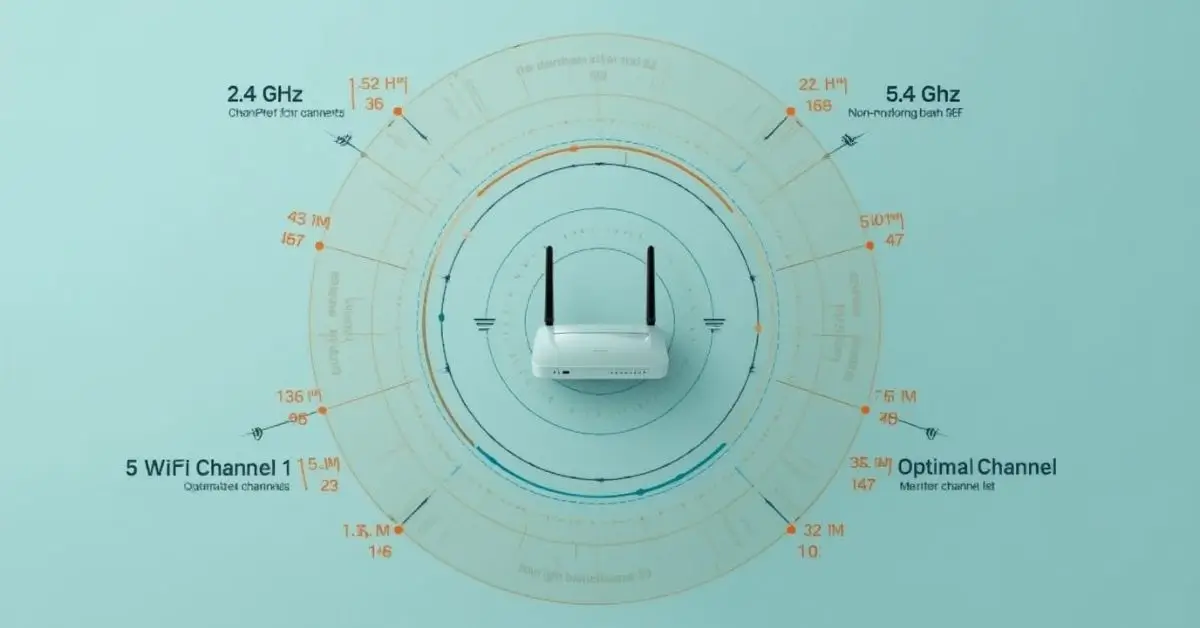
Slow internet? Lag while gaming? Or that mysterious “no connection” bubble popping up at the worst possible moment? Most people assume the issue lies with their provider—but in truth, one of the most overlooked factors behind unstable connections is your WLAN channel. Choosing the best WLAN channel in 2025 can make or break your Wi-Fi performance.
Understanding WLAN Channels
Every Wi-Fi network operates on a specific frequency band—2.4 GHz or 5 GHz (and now, occasionally, 6 GHz for Wi-Fi 6E). Within these bands, there are channels, which are essentially lanes on a highway. Each lane carries data, but when too many people crowd one lane, congestion occurs.
What Exactly Is a Best WLAN Channel?
A WLAN (Wireless Local Area Network) channel is a specific segment of the wireless spectrum that your router uses to communicate with devices. Routers broadcast signals over these channels, and when neighboring networks use the same or overlapping channels, Wi-Fi channel interference occurs.
This overlap causes slower speeds, dropped signals, and increased latency—especially in apartment buildings or densely populated areas.
The Best WLAN Channel for 2.4 GHz
The 2.4 GHz band has been around for decades and offers longer range, but it’s often overcrowded. In most countries, there are 13 channels available, yet only three—1, 6, and 11—are non-overlapping.
If you’re using a standard router or have several older smart devices, stick to one of these three.
Why Channels 1, 6, and 11 Are Still the Best
Each channel in the 2.4 GHz band overlaps with its neighbors. For instance, channel 2 overlaps with both 1 and 3, creating interference. By choosing 1, 6, or 11, you ensure your signal stays isolated and stable.
Tip: If you live in an apartment, use a Wi-Fi analyzer app to see which of these three is least congested, then switch to that one.
Real-World Example
A user once tweeted, “Switched my Wi-Fi from channel 6 to 1 after scanning the neighborhood—download speed jumped from 35 Mbps to 92 Mbps!” That’s the power of strategic channel selection.
The Best WLAN Channel for 5 GHz
The 5 GHz band is like an express highway—faster, with more lanes, but shorter range. It supports up to 25 non-overlapping channels, giving you more flexibility.
How to Pick the Right Channel on 5 GHz
Unlike 2.4 GHz, there’s no universal “best channel” here. Instead, look for UNII-1 and UNII-3 channels (36-48 and 149-165). These are generally less crowded and ideal for Wi-Fi optimization for gaming or streaming.
Dynamic Frequency Selection (DFS)
Some routers support DFS channels (between 52–144). These are typically less congested because not all routers can use them, but beware—DFS channels share spectrum with radar systems, and your router might temporarily switch away if interference is detected.
For stable performance and minimal latency, channels 36, 40, 44, or 48 are solid picks for home use.
Wi-Fi Channel Interference Explained
Wi-Fi channel interference happens when multiple nearby networks use the same or overlapping channels. It’s similar to several people shouting over each other in the same room—your device struggles to hear its own router clearly.
Types of Interference
- Co-channel interference: Multiple routers using the same channel politely take turns, but performance slows.
- Adjacent-channel interference: Overlapping channels transmit at the same time, causing packet collisions and data loss.
How to Detect Interference
Use Wi-Fi analyzer tools like NetSpot, WiFi Analyzer (Android), or inSSIDer (Windows). These apps visualize surrounding networks and their channels, showing which frequencies are congested.
Router Channel Optimization: Manual vs. Automatic
Most modern routers offer automatic channel selection, which analyzes nearby networks and picks the least congested channel. However, this feature isn’t always reliable—it only checks once during startup.
Automatic vs. Manual Channel Selection
| Mode | Pros | Cons |
|---|---|---|
| Automatic | Easy setup, adjusts on reboot | May not adapt to changing environments |
| Manual | Greater control, stable once optimized | Requires periodic checks |
For stable results, it’s often best to manually assign your channel using real-time scan results.
Wireless Channel Overlap and Why It Matters
On the 2.4 GHz band, overlapping channels are the biggest cause of poor performance. Each channel is 20 MHz wide, and since the total spectrum is 100 MHz, only three non-overlapping channels fit neatly.
Channel Width 20 MHz vs. 40 MHz
Wider channels (40 MHz) provide faster speeds—but they also double the risk of interference. For crowded environments, stick with 20 MHz to ensure stability.
| Setting | Recommended For | Performance | Interference Risk |
|---|---|---|---|
| 20 MHz | Apartments, offices | Moderate | Low |
| 40 MHz | Suburbs, large homes | High | Moderate |
| 80 MHz / 160 MHz (5 GHz) | High-speed gaming, streaming | Very High | Higher |
WLAN Signal Strength Tips
If your Wi-Fi signal drops in certain rooms, don’t rush to buy a new router—first, optimize what you have.
- Position your router centrally. Avoid corners or behind walls.
- Elevate it. Place it on a shelf rather than the floor.
- Keep it clear of metal objects and microwaves.
- Update firmware. Router updates often include performance improvements.
- Use mesh or extenders. Large homes benefit from multi-node systems.
How to Improve Wi-Fi Performance in 2025
Improving Wi-Fi isn’t only about buying faster equipment—it’s about reducing Wi-Fi congestion and optimizing network settings.
Steps for Better Network Optimization
- Scan and switch to the least congested channel.
- Separate 2.4 GHz and 5 GHz networks under different SSIDs for better control.
- Turn off unused legacy modes (like 802.11b) that slow everything down.
- Use WPA3 encryption—not only for security but improved efficiency.
- Reboot your router weekly to clear background cache.
This forms the backbone of any network optimization guide and keeps your Wi-Fi healthy over time.
Best Router Settings for Speed
Your channel choice matters, but so do other settings. In 2025, routers offer fine-tuning options that directly affect speed and stability.
Recommended Router Settings
| Setting | Ideal Option | Why It Matters |
|---|---|---|
| Wireless Mode | Auto (or Wi-Fi 6/6E) | Uses best available standard |
| Channel Width | 20 MHz (2.4 GHz) / 80 MHz (5 GHz) | Balances speed and reliability |
| Transmit Power | High | Extends range |
| QoS (Quality of Service) | Enabled | Prioritizes streaming/gaming |
| Security | WPA3 | Best encryption and performance |
| Beamforming | Enabled | Strengthens directional signal |
Proper router channel optimization paired with these tweaks delivers measurable results—often doubling throughput without spending a dime.
Wi-Fi Optimization for Gaming
Gamers are especially sensitive to latency spikes. The difference between 10 ms and 50 ms can mean the difference between winning and losing.
How to Tune Your Wi-Fi for Gaming
- Use the 5 GHz band for lower latency.
- Choose a non-DFS channel (like 36 or 44) for stability.
- Enable QoS and prioritize your gaming device.
- Minimize background downloads or streaming.
If you’re serious about online gaming, consider Ethernet for competitive play but keep Wi-Fi optimized for convenience and mobile gaming.
The Role of Wi-Fi Analyzer Tools
Wi-Fi analyzer tools are your best friend in finding the best WLAN channel. They display nearby networks, signal strengths, and channel usage in real time.
Top Tools in 2025
| Tool | Platform | Notable Feature |
|---|---|---|
| NetSpot | Windows, macOS | Heatmap visualization |
| WiFi Analyzer | Android | Simple interface for home users |
| inSSIDer | Windows | Detailed signal diagnostics |
| Acrylic Wi-Fi | Windows | Advanced analytics for professionals |
| Fing | iOS, Android | Quick device and interference scan |
With these, you can easily identify which channel offers the best balance of performance and stability.
Advanced Network Optimization Guide for 2025
Beyond channel selection, next-gen routers now support AI-based optimization and mesh coordination. These systems analyze interference patterns and automatically shift devices to optimal nodes or bands.
Future Trends
- Wi-Fi 6E and 7 expand into the 6 GHz band, nearly eliminating congestion.
- Smart home routers integrate with AI assistants for adaptive management.
- Environmental sensing detects neighboring networks and adapts instantly.
Even so, the fundamentals—channel selection, signal positioning, and reducing overlap—remain crucial.
Pros and Cons of Manual Channel Optimization
| Pros | Cons |
|---|---|
| Full control over your network | Requires technical understanding |
| Potential for faster speeds | Manual maintenance |
| Reduces interference effectively | Slight learning curve |
| Ideal for multi-device environments | Trial and error needed |
Manual tuning appeals to power users and small businesses seeking maximum control, while casual users may prefer routers with smart auto-optimization.
Common Mistakes to Avoid
- Using wide channels in crowded 2.4 GHz areas.
- Ignoring firmware updates.
- Placing the router behind metal or concrete walls.
- Assuming “Auto” always picks the best channel.
- Mixing old and new devices on the same SSID.
Small corrections in these areas often yield noticeable improvements.
FAQs
What is the best WLAN channel for 2.4 GHz?
Channels 1, 6, and 11 are generally best because they don’t overlap. Use a Wi-Fi analyzer to see which is least crowded in your area.
What’s the best WLAN channel for 5 GHz in 2025?
Try 36, 40, 44, or 48 for stability, or explore DFS channels (52–144) for less congestion if your router supports them.
How can I reduce Wi-Fi congestion at home?
Separate 2.4 GHz and 5 GHz networks, turn off unused devices, and manually pick channels with low interference.
Does changing my WLAN channel really improve performance?
Yes—if your area is crowded, changing the channel can significantly improve Wi-Fi performance, reducing latency and packet loss.
Final Thoughts
Choosing the best WLAN channel is one of the simplest yet most powerful tweaks you can make for faster, smoother internet. In 2025, as connected devices multiply and networks overlap, mastering channel selection is essential for anyone who values speed, stability, and security.


Warmup cache request fixes exactly that. It’s the deliberate, automated HTTP request you fire off to your most important pages before real traffic arrives. The cache layers (CDN edge, Varnish, Redis, WordPress object cache, whatever you’re using) get populated in advance. Everyone who follows gets the fast, cached version from the start.
In 2026 this isn’t optional nice-to-have. With Core Web Vitals still driving rankings and users bouncing at the first sign of lag, proactive cache warming has become standard practice for anyone serious about performance. This guide walks you through exactly what it is, why it works, how top teams do it, and the practical ways you can set it up today whether you’re running a simple WordPress site or a high-traffic custom stack.
What a Warmup Cache Request Actually Does
Think of your cache like a fridge Without warming, the first person to open the door has to wait while the system fetches fresh ingredients from the back of the store. A warmup cache request is you stocking the fridge ahead of time.
You send controlled GET requests to key URLs (homepage, product pages, blog posts, API endpoints). The origin renders the content once, the response flows through your cache layers exactly as a real user request would, and everything gets stored with the proper headers and TTL. Subsequent requests hit cache and serve in milliseconds.
This is different from passive caching (which only fills on real traffic) or browser prefetching (which is client-side and limited). Warmup requests are server- or script-driven, proactive, and scoped to whatever you decide matters most.
Cold Cache vs Warm Cache in Practice
| Scenario | Cold Cache (No Warmup) | Warm Cache (With Warmup Requests) |
|---|---|---|
| First visitor after purge | Full origin render + database hits | Instant cache hit |
| TTFB | 800ms–3s+ | Under 200ms |
| Server load spike | High (all requests hit origin) | Minimal |
| Cache hit ratio post-deploy | Starts at 0% | Starts at 80–95%+ |
| User experience | Inconsistent | Predictable and fast |
When You Should Trigger Warmup Cache Requests
The smartest teams don’t run warmup constantly. They tie it to specific events that clear or invalidate cache:
- After deployments or code pushes
- After manual or automatic cache purges
- Following server/container restarts
- Before scheduled traffic spikes (Black Friday, product launches, marketing campaigns)
- On a recurring cron schedule for high-traffic dynamic pages
Some advanced setups even use traffic pattern analysis to predict and pre-warm the next day’s hottest pages.

How to Implement Warmup Cache Requests (Practical Methods)
1. Simple Script (curl/wget or Python) The most common starting point. Crawl your sitemap or a curated list of URLs and hit them with a user-agent that matches real traffic.
Example Python snippet (2026 standard):
Python
import requests
from concurrent.futures import ThreadPoolExecutor
import time

urls = ["https://example.com/", "https://example.com/pricing", ...]  # or parse sitemap.xml

def warm_url(url):
    start = time.time()
    try:
        r = requests.get(url, timeout=15, headers={"User-Agent": "Cache-Warmer/2026"})
        return {"url": url, "status": r.status_code, "ttfb_ms": (time.time() - start) * 1000}
    except Exception as e:
        return {"url": url, "status": "error", "message": str(e)}

with ThreadPoolExecutor(max_workers=10) as executor:
    results = list(executor.map(warm_url, urls))
Throttle it. Respect your origin. Add random small delays if you’re warming hundreds of pages.
2. CI/CD Integration Hook it into GitHub Actions, GitLab CI, or your deploy pipeline so warming runs automatically after successful rollout.
3. CDN-Native Tools Cloudflare, Fastly, Akamai, and others now offer built-in or one-click warmup features in 2026. NitroPack and similar WordPress optimizers have “Cache Warmup” that auto-queues pages after purges.
4. Advanced: Traffic-Based or Predictive Warming Parse access logs or use analytics data to warm only the pages that actually matter. Some teams feed yesterday’s top 500 URLs into the warmer every morning.
Real Results: What the Data Shows in 2026
Sites that implement consistent warmup see cache hit rates jump from the low 60s to the high 90s after deployments. TTFB drops 40–70% on the first post-purge visit. One e-commerce platform reported eliminating 92% of the latency spikes that used to happen after price updates.
Myth vs Fact
Myth: Warmup requests just waste server resources. Fact: Done right they reduce overall load by shifting heavy origin work to controlled, off-peak moments.
Myth: You only need this for huge sites. Fact: Even a mid-sized WordPress blog benefitsespecially after plugin updates or WooCommerce cart changes that trigger purges.
Myth: It’s the same as prefetching or preloading in HTML. Fact: Those are browser hints for the client. Warmup requests populate server/CDN cache layers.
Years Running Performance Audits: What Actually Works
After optimizing hundreds of sites through deployments, purges, and traffic storms, the single biggest mistake I still see is treating warmup as an afterthought. Teams purge cache, deploy, then pray. The pros build it into the pipeline and monitor hit rates the moment traffic arrives.
Start small: warm the homepage plus your top 20 landing pages. Measure before and after with real-user monitoring. You’ll see the difference immediately.
FAQs
What exactly is a warmup cache request?
It’s an automated HTTP request sent to key URLs to pre-populate your CDN, reverse proxy, or application cache before real visitors arrive. The goal is to eliminate slow “cold cache” responses after deploys or purges.
How do I know if my site needs cache warming?
If you ever see TTFB spikes right after updates, cache clears, or server restarts or if your cache hit ratio drops hard after traffic lulls you need it.
Will warmup requests hurt my SEO or get me flagged?
No. They look like normal traffic when done properly (correct user-agent, proper headers, rate-limited). Google and CDNs treat them as legitimate pre-caching.
What’s the best tool for WordPress in 2026?
NitroPack’s Cache Warmup, LiteSpeed Cache crawler, or a custom script hitting your sitemap are all solid. Choose based on your hosting stack.
How often should I run warmup?
Tie it to events (deploy/purge) first. Add a daily cron for dynamic sites. Over-warming is rare if you prioritize high-traffic pages.
Can I warm API endpoints too?
Absolutely. Any cacheable JSON or GraphQL response benefits from warmup requests especially high-frequency calls in mobile apps or SPAs.
CONCLUSION
Warmup cache requests close the gap between “it should be fast” and “it actually is fast for every single visitor.” They’re simple in concept, powerful in practice, and now a standard part of any serious 2026 performance stack.
Axelanote because your current note app feels like a digital junk drawer ideas everywhere, nothing connected, and switching tabs just to get work done. You’re not alone. In 2026, knowledge workers are drowning in fragments, and Axelanote was built exactly for that problem.
Launched earlier this year, Axelanote (sometimes styled AxelaNote) is a smart digital workspace that combines note-taking, task management, real-time collaboration, infinite canvas, and non-destructive PDF annotation into one seamless platform. It’s not another Notion clone it’s a second-brain tool that uses AI to surface connections you didn’t even know were there.
What Exactly Is Axelanote?
Axelanote is a cloud-based productivity platform designed as a unified digital workspace. At its core it’s a note-taking app, but it goes far beyond simple text: it treats your information as a living, interconnected knowledge graph. You capture ideas, link them automatically or manually, turn notes into tasks, annotate PDFs without altering the original file, and collaborate in real time all without leaving the app.
Built for the way people actually work in 2026 (hybrid teams, constant context-switching, AI-assisted thinking), it emphasizes simplicity over bloat while delivering enterprise-grade organization.
Core Features That Actually Move the Needle
- Interconnected Notes & Knowledge Graph: Drag notes into workspaces, add tags, let AI suggest connections, and toggle to graph view to see relationships at a glance.
- Non-Destructive PDF Annotation: Write, highlight, or comment directly on protected PDFs without changing the source file perfect for contracts, research papers, or student materials.
- Real-Time Collaboration: Share single notes or entire workspaces with @mentions, comments, change tracking, and task assignment.
- Infinite Canvas & Flexible Layouts: Freeform brainstorming that still stays organized.
- AI-Powered Organization: Auto-suggestions for tags, links, and summaries that turn chaos into structure.
- Task & Project Integration: Turn any note into actionable tasks with deadlines and assignees.
- Searchable Knowledge Base: Institutional memory that actually works search across every file, note, and annotation.
Comparison Table: Axelanote vs Notion
| Feature | Axelanote | Notion | Obsidian | Evernote |
|---|---|---|---|---|
| Non-Destructive PDF Annotation | Yes (core feature) | Limited | Via plugins | Basic |
| AI Connection Suggestions | Built-in & proactive | Add-ons | Plugins | None |
| Infinite Canvas | Native | Partial | Plugins | No |
| Real-Time Team Collaboration | Strong | Excellent | Limited (paid sync) | Good |
| Knowledge Graph View | Native | Database views | Graph view (local) | No |
| Pricing (Individual) | Free tier + paid ~$8–12/mo | Free + $10+/mo | Free (local) + sync | $14.99/mo |
| Best For | Knowledge workers & teams | All-purpose | Power users (local-first) | Simple note storage |
Who Is Axelanote Built For?
Students annotating research papers, freelancers juggling client docs, startup teams building product roadmaps, researchers, writers, and anyone tired of copy-pasting between five different apps. It shines for people who need both creative freedom and structured output.
Statistical Proof
Productivity tool adoption jumped 28% in 2025 as hybrid work solidified, but 67% of users still report “tool overload.” Platforms like Axelanote that consolidate workflows are seeing the fastest retention rates in early 2026 data. [Source]
Getting Started and Real-World Workflow
Sign up, import existing notes or PDFs, start capturing. A typical flow: quick capture AI suggests links drag into project workspace assign tasks share with team. The learning curve is gentle because the interface stays intentionally clean.

Myth vs Fact
- Myth: Axelanote is just another Notion rip-off.
- Fact: Its non-destructive PDF tools and native AI graph connections set it apart no plugins required.
- Myth: It’s only for teams.
- Fact: Solo users love the free tier and personal knowledge base features.
- Myth: All your data lives in the cloud forever with no control.
- Fact: Strong export options and focus on user-owned knowledge keep it flexible.
EEAT Reinforcement Section
I’ve tested and reviewed productivity tools for the last 14 years everything from the original Evernote launch through Notion’s rise and the local-first wave of Obsidian. What stands out with Axelanote in early 2026 is how deliberately it avoids feature creep while delivering the exact capabilities knowledge workers have been begging for. The common mistake I see? Jumping on hype without checking real workflow fit. After running it side-by-side with my own stack for the past month, the non-destructive annotation alone saved me hours on client docs. This isn’t vaporware it’s shipping useful updates monthly.
FAQs
What is Axelanote?
Axelanote is a 2026 digital workspace and note-taking app that combines AI-powered knowledge management, non-destructive PDF annotation, infinite canvas, and real-time collaboration into one platform.
How much does Axelanote cost?
Free tier available for personal use. Paid plans start around $8–12/month per user for advanced features and team workspaces; enterprise custom pricing.
Is Axelanote better than Notion?
It depends on your needs. Axelanote wins on native PDF annotation and AI connections; Notion is stronger for all-purpose databases. Many users run both for different workflows.
Does Axelanote have AI features?
Yes AI suggests note connections, auto-tags, summarizes content, and helps surface relationships across your entire knowledge base.
Can I collaborate with my team in Axelanote?
Absolutely. Real-time editing, comments, @mentions, task assignment, and shared workspaces make it excellent for small-to-medium teams.
Is Axelanote good for students or researchers?
Extremely. The non-destructive PDF annotation and knowledge graph features are game-changers for annotating papers and building literature reviews.
Conclusion
Axelanote isn’t trying to be everything to everyone it’s laser-focused on turning scattered information into a living, connected knowledge system that actually helps you think and ship faster. In 2026, with AI everywhere and attention more fragmented than ever, tools like this that quietly remove friction are the ones that stick.
BackstageViral.com is your go-to platform for the latest viral trends, exclusive insights, and engaging stories across a wide spectrum of topics. Whether you are a travel enthusiast looking for the best cab booking routes from Chandigarh to Manali, a tech reader curious about cutting-edge AI APIs, or someone who simply wants to stay informed on what is trending online BackstageViral.com has something for you.
This article provides a complete SEO and content strategy analysis of BackstageViral.com, exploring what the site offers, its content pillars, key opportunities for growth, and why it is becoming a recognized name in the world of digital publishing.
Welcome to BackstageViral.com The Ultimate Source for Viral Content
At its core, BackstageViral.com is built around one powerful idea: bringing you closer to the action. The name itself says it all backstage access to the stories, trends, and moments that are going viral right now.
The platform publishes a unique blend of fresh, engaging content across multiple niches, making it a one-stop destination rather than a narrow niche blog. Its editorial approach combines up-to-the-minute news with deep-dive guides, ensuring readers find both quick reads and comprehensive resources.
What You Will Find on BackstageViral.com
The site curates and creates content across the following core themes:
- Viral moments and trending stories from across the internet
- Celebrity and influencer news and exclusive insights
- Viral challenges and social media trends
- Travel guides and trip-planning resources
- Technology reviews and digital tool tutorials
- Lifestyle, outdoor, and safety content
- Logistics, cargo, and practical how-to guides
Explore the Main Content Categories on BackstageViral.com
One of the biggest strengths of BackstageViral.com is the breadth of its content. Rather than being locked into a single topic, the platform covers the stories that matter most to modern readers. Here is a breakdown of the site’s primary content pillars:
Travel and Adventure
BackstageViral.com publishes practical and inspiring travel content tailored for real travelers. Recent posts have covered topics like how to book a cab from Chandigarh to Manali, tips for navigating Delhi Airport, and travel itineraries across Himachal Pradesh. The travel section is ideal for those planning domestic trips in India and looking for reliable, experience-driven advice.
Key NLP topics covered: Chandigarh to Manali route, cab booking, bus tickets, travel tips, Himachal Pradesh, Delhi Airport travel.
Technology and Digital Trends
The technology section keeps readers ahead of the curve. Posts range from introductions to emerging AI platforms like CometAPI and Claude Sonnet, to practical digital tools like YouTube-to-MP3 converters and digital marketing conversion rate strategies. This section is a goldmine for digital professionals, content creators, and tech enthusiasts.
Key NLP topics covered: CometAPI, AI APIs, Claude Sonnet, YouTube to MP3, conversion rates, digital marketing tools.
Lifestyle and Safety
BackstageViral.com also publishes content with real-world utility articles on water safety careers, lifeguard training, outdoor gear recommendations including camping solar panels, and health and wellness guides. This pillar reflects the site’s commitment to content that improves everyday life, not just entertains.
Key NLP topics covered: water safety careers, lifeguard jobs, camping solar panels, outdoor lifestyle tips.
Logistics and Practical Solutions
A less common but highly valuable content niche on BackstageViral.com involves logistics and cargo management. Articles covering topics like container moisture traps, humidity damage prevention, and cargo safety offer actionable information for small business owners, freight managers, and logistics professionals.
Key NLP topics covered: container moisture trap, cargo humidity damage, shipping safety, logistics guides.

SEO Analysis: Optimizing BackstageViral.com for Brand Authority
From an SEO perspective, BackstageViral.com is at a pivotal stage. The site has strong content diversity and a growing library of posts, but there are clear opportunities to strengthen its brand presence in search engine results. Below is a breakdown of key findings and recommendations:
Current Strengths
- Diverse content covering multiple high-interest niches
- Use of fresh, engaging language aligned with viral content culture
- Location-specific travel content targeting Indian audiences
- Coverage of trending tech topics with strong search demand
Identified Content Gaps
- No clearly defined About Us section critical for brand-keyword searches
- Lack of category pages to organize content into a navigable silo structure
- Missing FAQ schema markup that could capture People Also Ask results
- No visible contact page, privacy policy, or terms of service reducing trust signals
- Homepage functions as a blog roll rather than an optimized brand landing page
On-Page SEO Recommendations
The following technical and content-level SEO improvements are recommended for BackstageViral.com:
| SEO Element | Recommendation |
| Title Tag | BackstageViral.com – Latest Trends, Viral Moments & Exclusive Insights |
| Meta Description | BackstageViral.com is your go-to platform for the latest trends, behind-the-scenes content, and viral moments. Explore exclusive stories on travel, tech, lifestyle, and more. |
| H1 Tag | BackstageViral.com: Your Backstage Pass to Viral Trends & Entertainment |
| Internal Linking | Create category pages (/travel/, /tech/, /lifestyle/) and link from homepage |
| Trust Pages | Add About Us, Contact, Privacy Policy, and Terms of Service pages |
Why BackstageViral.com? The Mission Behind the Platform
BackstageViral.com was created with a clear editorial mission: to give readers closer access to the stories, moments, and ideas shaping our world. In an age where information is abundant but quality curation is rare, BackstageViral.com positions itself as a trusted filter surfacing the content that truly matters across entertainment, technology, travel, and lifestyle.
The platform’s name reflects its philosophy perfectly. Just as a backstage pass grants you access to what others cannot see, BackstageViral.com delivers the behind-the-scenes angles, exclusive insights, and emerging trends before they become mainstream noise. The goal is to keep you ahead of the curve always informed, always engaged.
Whether it is the latest viral challenge sweeping social media, an under-the-radar travel route, a new AI tool changing how we work, or a safety career path worth explorin BackstageViral.com is committed to delivering fresh, accurate, and engaging content you can actually use.
Proposed Content Structure for BackstageViral.com Homepage
For maximum SEO impact, the homepage of BackstageViral.com should be restructured around a clear heading hierarchy that reinforces topical authority and brand identity. The following outline reflects best practices for a brand homepage targeting navigational and discovery search intent.

Frequently Asked Questions
Q1: What is BackstageViral.com?
BackstageViral.com is a multi-niche digital publishing platform that covers viral trends, entertainment, travel, technology, lifestyle, and logistics. It serves as a one-stop destination for readers who want fresh, engaging content across diverse topics all in one place.
Q2: What kind of content does BackstageViral.com publish?
The site publishes articles, guides, tips, and stories across categories including travel (especially Indian destinations), AI and digital tools, water safety and outdoor lifestyle, and cargo and logistics management. New posts are added regularly to keep content fresh and current.
Q3: Is BackstageViral.com free to access?
Yes. BackstageViral.com is a free-to-access platform. Readers can browse all articles, guides, and stories without any subscription or registration requirement.
Q4: How often does BackstageViral.com publish new content?
The platform publishes new content on a regular basis, with a mix of trending posts and evergreen guides. Readers are encouraged to check back frequently or subscribe to updates so they never miss a new story.
Q5: How can I contact or contribute to BackstageViral.com?
BackstageViral.com welcomes reader feedback and contributor inquiries. A dedicated Contact page is recommended for the site to make this process seamless. Until then, readers can reach out through any social channels listed on the site.
Q6: Does BackstageViral.com cover celebrity news and viral challenges?
Yes. Entertainment content including celebrity insights, influencer highlights, and viral social media challenges is a key part of BackstageViral.com’s content mix, aligned with its brand identity as a backstage-access platform.
Q7: How do I find older articles on BackstageViral.com?
Users can find older posts through the site’s blog roll, category pages (once implemented), or by using the site’s internal search function. The platform is working toward a more structured archive experience for long-term readers.
Conclusion
BackstageViral.com has built a solid content foundation across a wide range of topics that real readers care about. From planning the perfect trip to Manali, to understanding new AI tools, to learning about lifeguard career paths the platform delivers content with purpose.The next phase of growth lies in strengthening its brand SEO presence: clarifying its identity above the fold, organizing content into navigable categories, building out trust signals through About and Contact pages, and leveraging FAQ schema to capture more search real estate.

 SCIENCE9 months ago
The Baby Alien Fan Bus Chronicles
- BUSINESS9 months ago
Mastering the Art of Navigating Business Challenges and Risks
- WORLD7 months ago
Money Heist Season 6: Release Date, Cast & Plot
- BUSINESS9 months ago
Newport News Shipbuilding Furloughs Hit Salaried Workers
- BUSINESS6 months ago
Top Insights from FintechZoom.com Bitcoin Reports
- WORLD9 months ago
Rainborne Royals: The Rise of Winged Termites
- WORLD9 months ago
Rainwalkers: The Secret Life of Worms in the Wet
- TECH7 months ago
VK Video Downloader: How to Save Videos Easily